
Skip to content
Unlock Health Logo

Managing Your Integration Connection: Testing, Notifications, Logs, and Resending Records

📹 Watch the Integration Management video


Overview

Once your integration connection is set up, the next step is making sure data is flowing correctly and that your team has visibility into delivery activity over time.

This article covers the integration management tools available in the HRA Console, including how to:

  • Configure testing environments
  • Send sample data
  • Set up error notifications
  • Review integration logs
  • View error messages
  • Resend failed records

This article is designed as a follow-up to the initial integration setup guide. If you are just getting started, begin with the article on setting up your integration connection.


Why Integration Management Matters

Integration management helps your team confirm that HRA data is being delivered successfully to connected systems.

These tools are especially useful during:

  • Initial implementation
  • Pre-launch QA
  • Testing new HRA configurations
  • Troubleshooting failed records
  • Ongoing monitoring after launch

Testing configurations, sample data, notifications, and logs give your team the tools to validate the connection before launch and monitor performance over time.

Notifications are especially helpful because they allow your team to respond proactively when a record fails to send. Rather than waiting for someone to manually review logs, the right team members can be alerted immediately, review the issue, resolve it, and resend the record if needed.


Testing Configuration

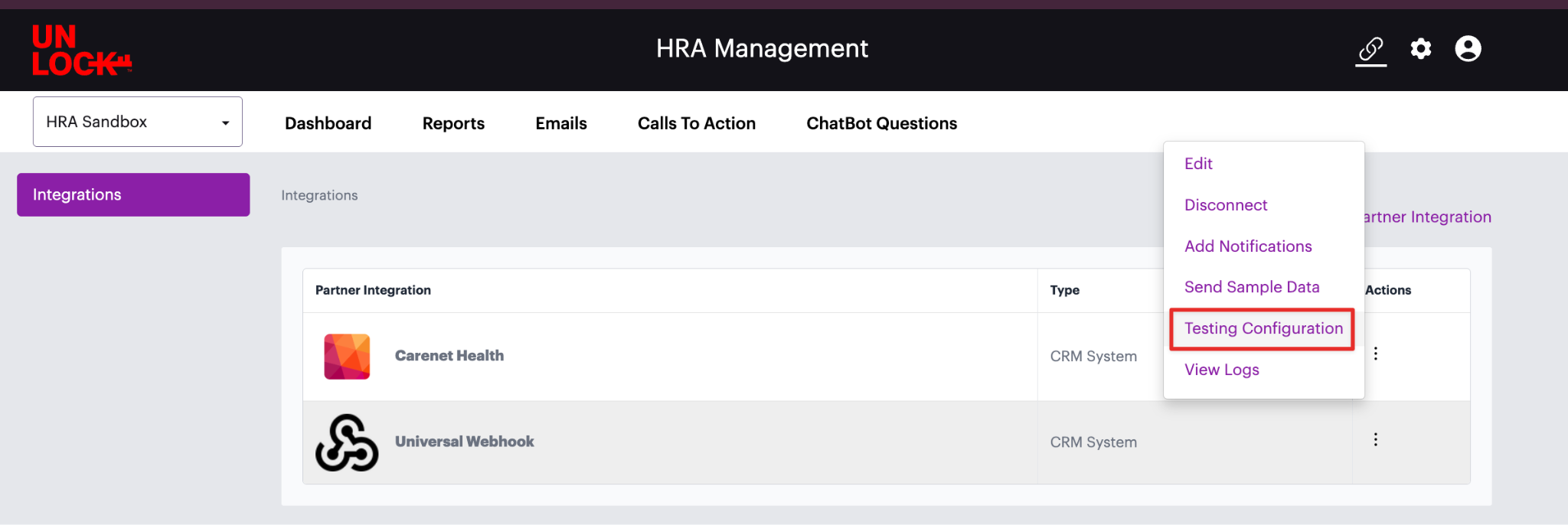
When managing an integration, you will see an option for Testing Configuration in the integration Actions menu.

Testing configurations allow your team to create a separate testing environment alongside the production configuration. This makes it possible to validate data flow without sending QA or sample data into your live production system.

Use a testing configuration to confirm:

  • The connection is working
  • Data is being sent to the correct system
  • Expected fields are coming through
  • Values appear as expected
  • Downstream teams can view and interpret the data correctly

A testing environment gives your team confidence before launch and before introducing new integration workflows into production.

Sending Sample Data

The Send Sample Data action allows you to send sample HRA submissions to an established integration connection.

To send sample data
  1. Go to the Integrations section of the HRA Console.
  2. Find the integration you want to test.
  3. Open the Actions menu.
  4. Select Send Sample Data.
  5. Choose the HRA you want to test, or select All HRAs.
  6. Choose the environment, such as testing or production.
  7. Click Send Sample Data.

When sample data is sent, the system generates one sample submission for each risk level of each selected HRA where the integration is active.

⚠️ Important: The integration must be enabled at the HRA level for sample data to be sent for that HRA.

Sample submissions use sample values. Question answers and calculated outputs may not match real participant submissions.

When to use sample data

Sending sample data is useful when you want to:

  • Confirm the integration connection is working
  • Validate that fields are being received correctly
  • Test a new HRA integration before launch
  • Verify a testing environment
  • Confirm downstream systems are receiving records as expected
  • Confirm different HRA risk levels are being received and interpreted correctly

This gives internal teams, IT partners, and CRM teams a reliable way to test without waiting for live HRA completions.


Creating Error Notifications

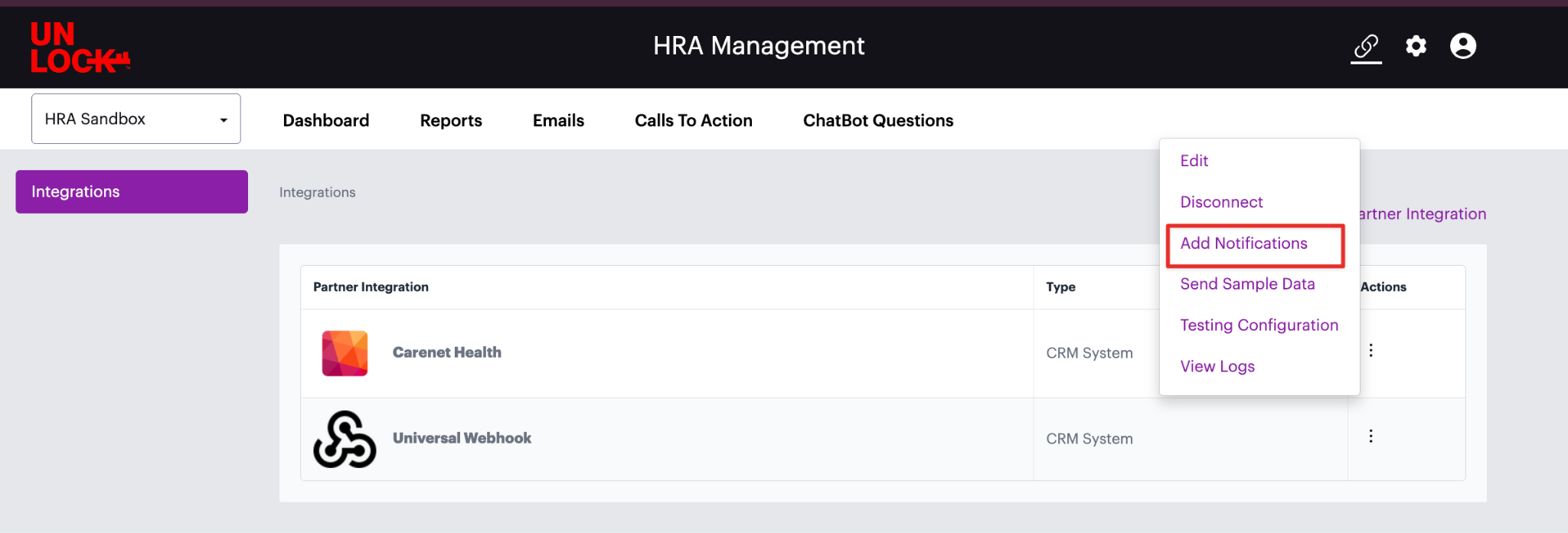
The Add Notifications action allows your team to receive alerts when an integration fails to send data successfully to your endpoint.

This supports ongoing integration management by giving your team a proactive way to identify issues that may need review.

To add notifications
  1. Go to the Integrations section of the HRA Console.
  2. Find the integration you want to monitor.
  3. Open the Actions menu.
  4. Select Add Notifications.
  5. Configure the appropriate notification recipients.

Once notifications are set up, your team can be alerted whenever a record fails to send.

Recommended workflow after receiving a notification
  • Open the integration’s View Logs page
  • Filter by failed status
  • Review the failed record
  • Open the error message to view the response code and details
  • Resolve the issue with your technical team or endpoint owner
  • Resend the failed record once the issue is resolved

Error notifications are especially useful after launch because they help ensure failed records do not go unnoticed.

Viewing Integration Logs


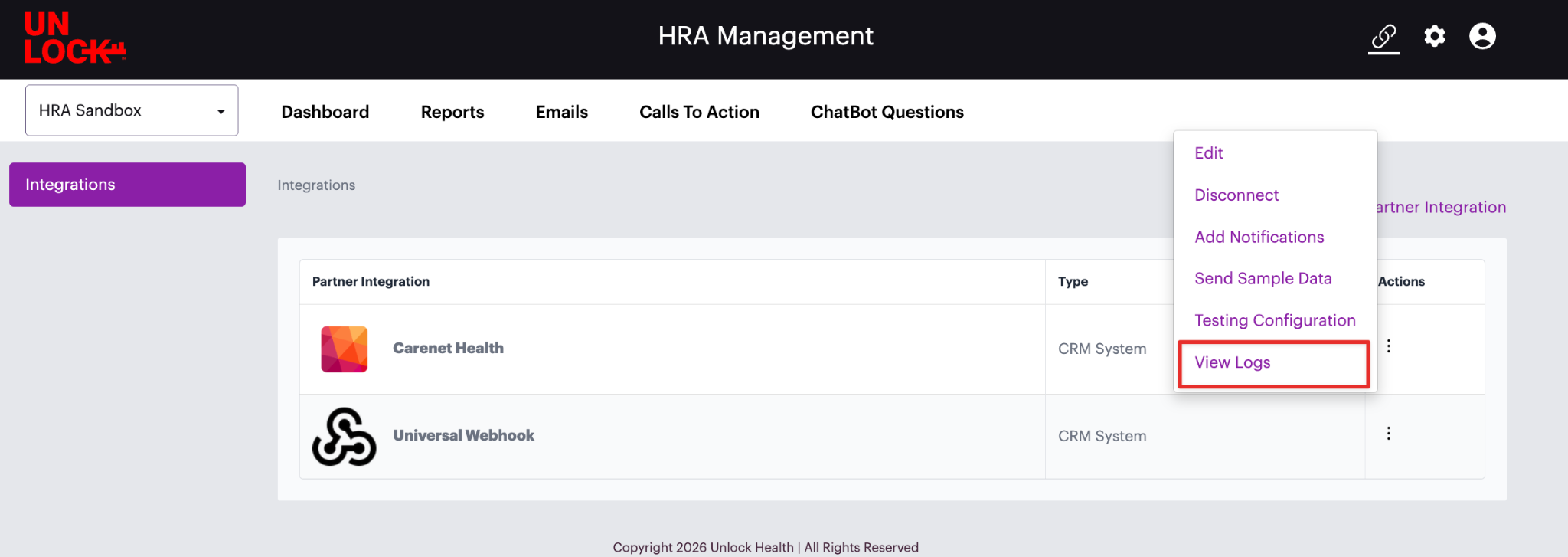
The View Logs action allows your team to monitor delivery activity for an integration.

To access logs
  1. Go to the Integrations section.
  2. Find the integration you want to review.
  3. Open the Actions menu.
  4. Select View Logs.

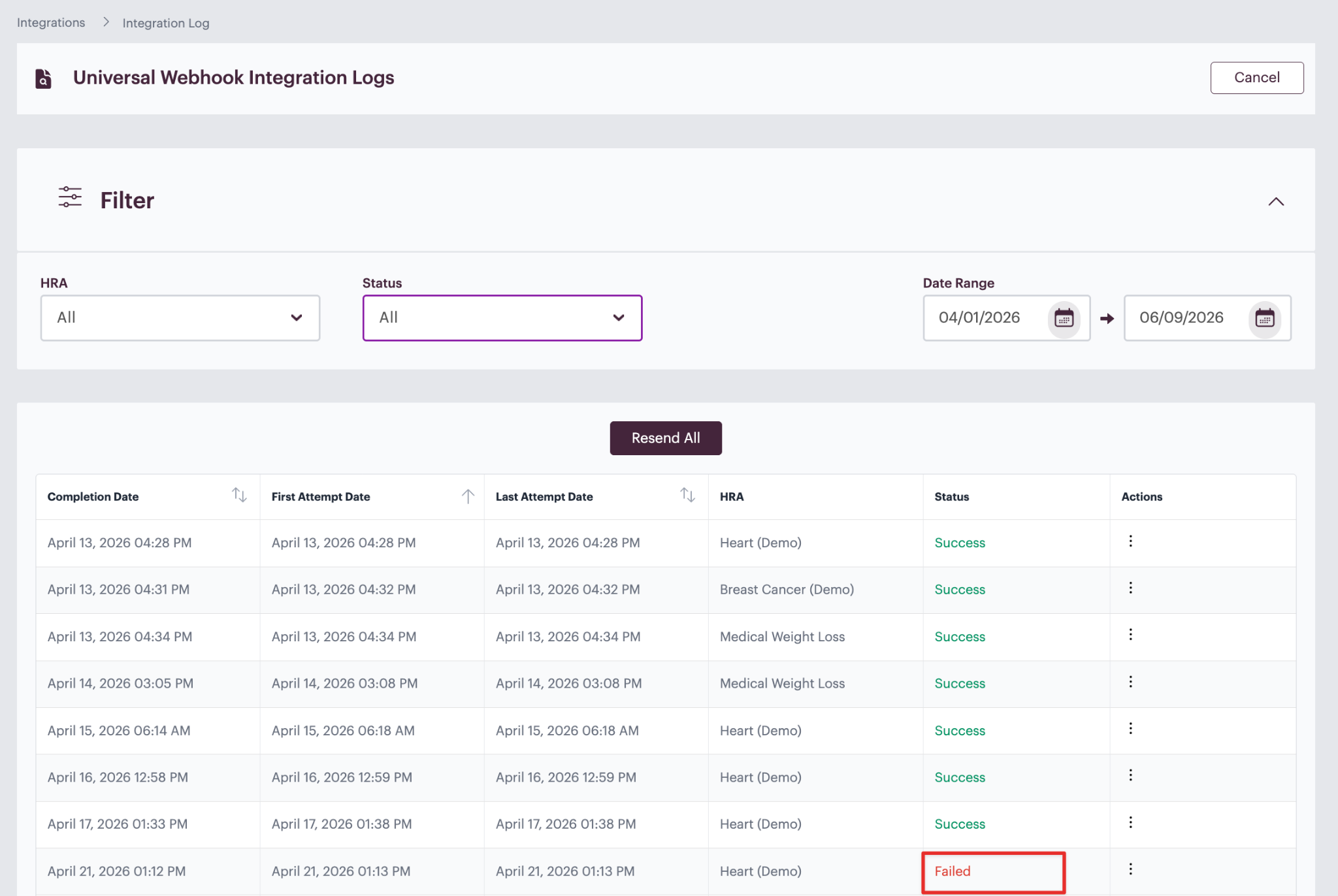
From the log page, you can filter records by:

  • HRA
  • Status
  • Date range

The log table includes details such as:

  • Completion date
  • First attempt date
  • Last attempt date
  • HRA
  • Status
  • Actions

This makes it easy to understand whether records are sent successfully or whether any failures need attention.

Logs are especially useful when paired with error notifications. Notifications alert your team to a failure, and logs provide the details needed to investigate.

Reviewing Failed Records


If a record fails, it will appear with a failed status in the log table.

To troubleshoot a failed record
  1. Find the failed record in the log table.
  2. Open the Actions menu.
  3. Select View Error Message.

The error message view may include details such as:

  • Request body
  • Status code
  • Duration
  • Response body
  • Error message

This information can help your team understand why the record failed.

Common causes include:

  • Expired or invalid authentication token
  • Missing required field
  • Endpoint issue
  • Formatting issue
  • Downstream system error

If you are unsure how to interpret an error message, share the details with your internal technical team, integration partner, or Unlock Health support contact.


Resending Failed Records

 If a failed record needs to be resent, you have two options.

Resend an individual record
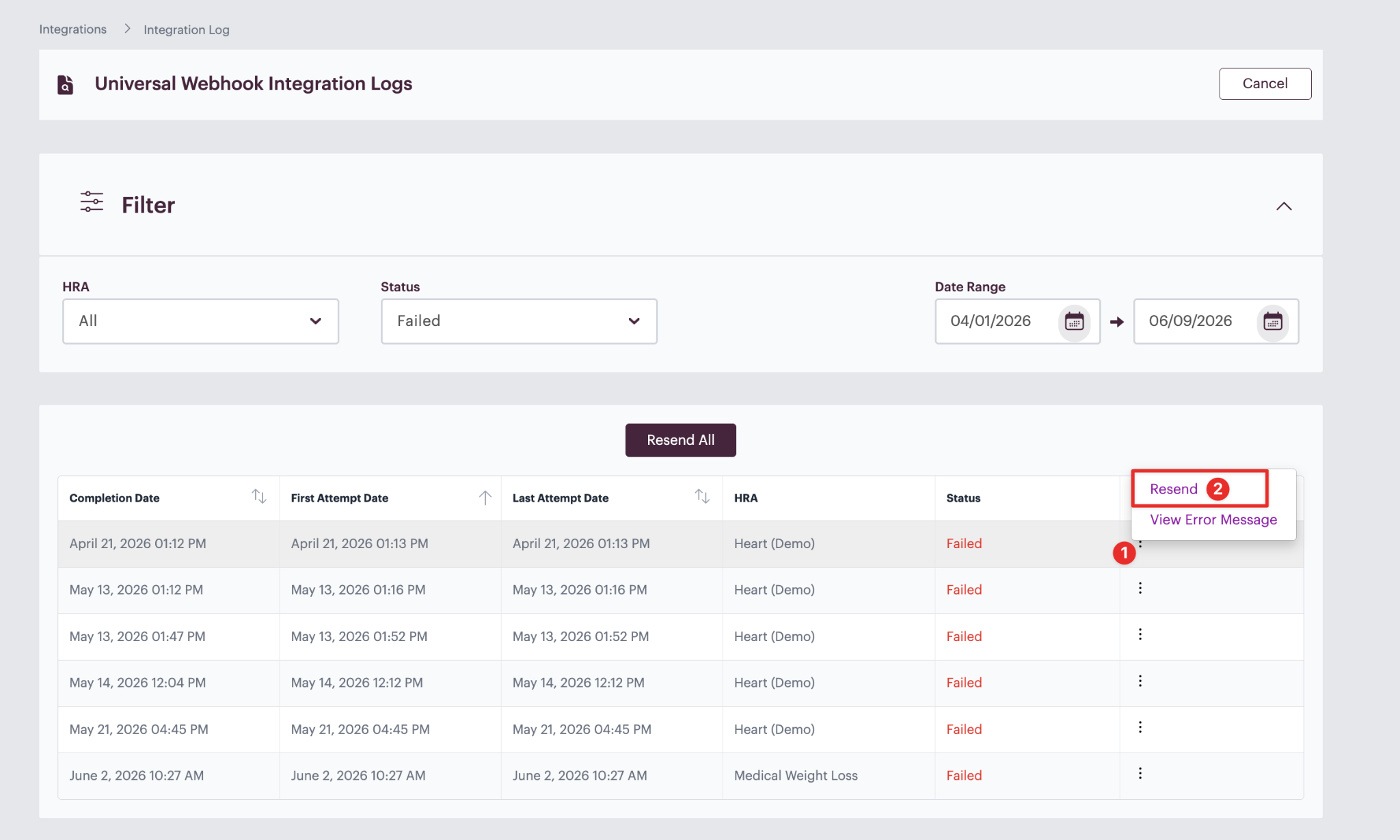

Use this when you want to retry one specific failed record.

  1. Find the failed record in the log table.
  2. Open the Actions menu.
  3. Select the resend option.
Resend all failed records
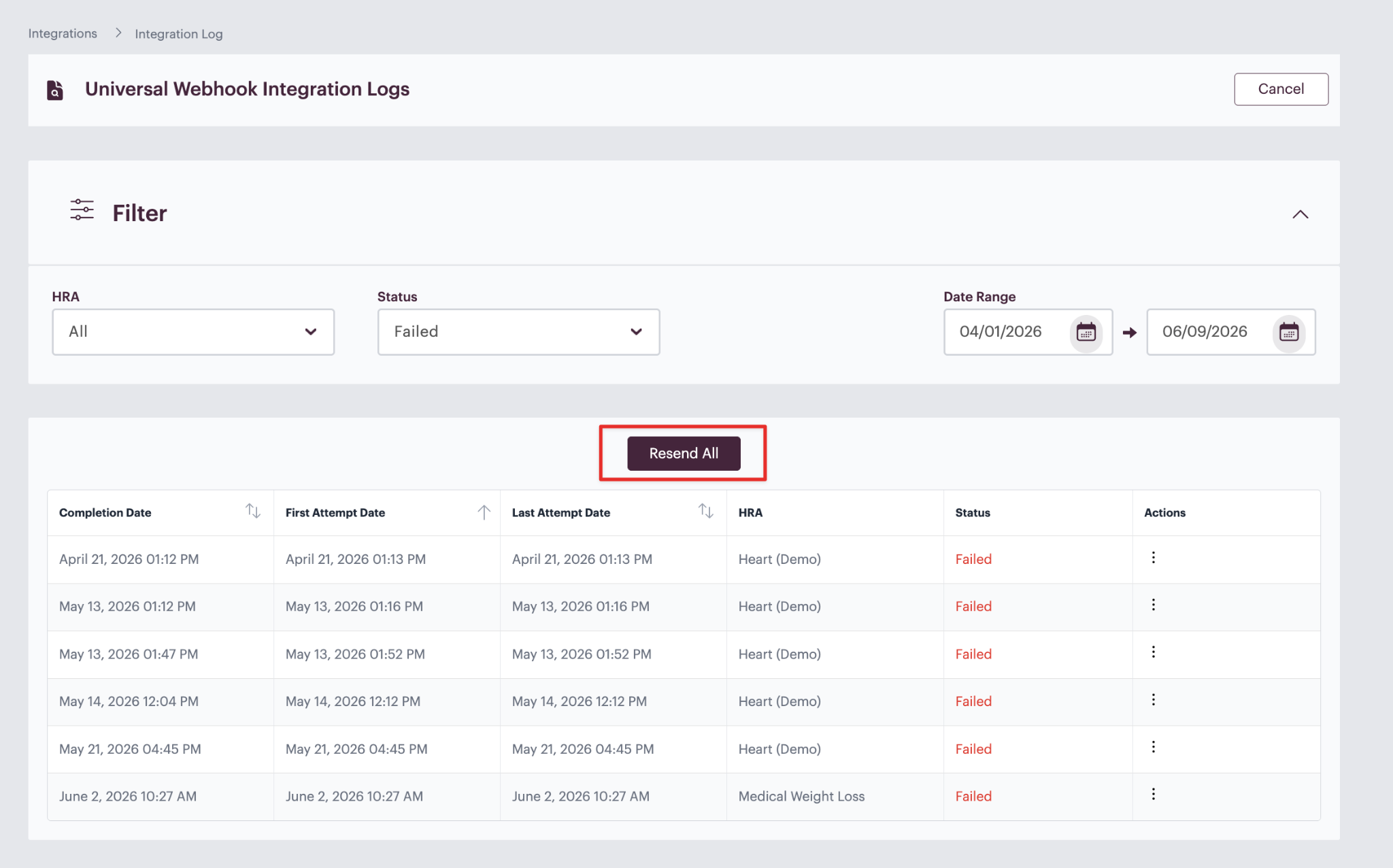
Use this when multiple records failed for the same reason and the issue has already been resolved.

  1. Filter the log table by failed status.
  2. Review the failed records.
  3. Select Resend All.

This allows your team to retry delivery without requiring participants to retake the HRA.


Best Practices

Test before launch

Before going live, use the testing configuration and sample data tools to confirm that data is flowing correctly.

Validate with your downstream team

Have the receiving system owner confirm that records, fields, and values appear as expected.

Set up error notifications

Configure notifications so the right team members know when an integration fails to send data. This makes it easier to review logs, diagnose issues, and resend records when appropriate.

Monitor logs after launch

Review logs periodically after launch to confirm records continue to send successfully.

Troubleshoot before resending

If records fail, review the error message first. Resolve the underlying issue before resending.

Use bulk resend carefully

Use Resend All only when you are confident the issue causing the failures has been resolved.


Recommended Workflow

For new or updated integrations, we recommend the following process:

  1. Configure the integration connection.
  2. Add or confirm the testing configuration.
  3. Enable the integration for the appropriate HRAs.
  4. Set up error notifications for the appropriate team members.
  5. Send sample data to the testing environment.
  6. Confirm records appear correctly in the receiving system.
  7. Resolve any issues identified during testing.
  8. Move to production when ready.
  9. Monitor logs after launch.
  10. Use notifications to identify failed sends.
  11. Review error messages and response codes.
  12. Resend failed records as needed.


Key Takeaways

  • Testing configurations help validate integrations without sending sample data into production
  • The Send Sample Data tool sends sample submissions by HRA and environment
  • Sample data is generated for each risk level of each selected HRA where the integration is active
  • Error notifications help your team know when an integration fails to send data
  • Integration logs help your team monitor both successful and failed delivery activity
  • Failed records can be reviewed, troubleshot, and resent


If you need any help navigating the HRA Management Console or have features you wish to see added, don’t hesitate to contact your Client Success representative!

Email: hrasupport@unlockhealthnow.com